Tuesday, June 2, 2020

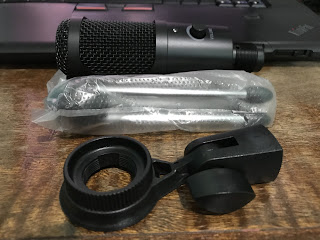
Generic USB Condenser Microphone


After a week it finally arrived in our doorsteps. We ordered at Shopee a generic USB condenser microphone (P875.00 pesos) we intend to use for online class. We will keep our plantronics headset as back up. We are really preparing for this as the online regular class will begin in August and will go on for months until the pandemic is fully resolved.


What’s inside the box:

1. USB cable
2. Mic stand tripod
3. Microphone
4. Product info


This microphone is very simple to setup. Just connect the USB cable to the microphone and connect the other end to the laptop’s USB port. On your computer sound settings or on Zoom audio settings, make sure to select ‘Microphone (USB PnP Sound Device). There is a volume control and light indicator on the mic itself. We tested the unit on Zoom and it works fine. The other party can hear me loud and clear.


Monday, June 1, 2020

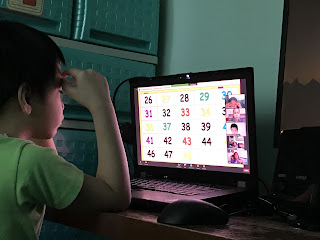
Online Class | Week 2 | Day 2 | Math | Subtraction


Today’s class started with a prayer. It is very important to ask for God’s guidance before starting any activity. Then the class warms up with a short math song followed by a long review of last session’s topic which was about counting numbers and addition. Those who were able to answer the questions gets to have a ‘Magaling Clap’ from the class. Then they check their homework. Some students were not able to work on their assignment though.


The main topic was about subtraction. Minuend, the bigger number, followed by the minus sign, then followed by subtrahend, the smaller number, followed by the equal sign and followed by the difference, the answer. Then, they went through an answering activity where objects were used to represent the numbers to be subtracted. They also went through the vertical and horizontal way of subtracting numbers.


When students were asked to show their answer to the camera, my kid noticed that the numbers were shown backwards, so he made an initiative to write the numbers down backwards so that when it is shown in the camera the numbers will look correct.


On Thursday, they will have a quiz. We got some reviewing to do later.


Sunday, May 31, 2020

Online Class | Week 2 | Day 1 | Story Telling

In today's class, it was about story telling and comprehension.

As the class begins, the teacher encountered a bit of issue with her headset. Every time she speaks, the participants hear static noises. After a while, the teacher decided to just use the laptop's integrated mic and speaker. Did some testing and her line now sounds really clear.

The title of her story is 'Ang Itim na Kuting' (The Black Kitten). The name of the kitten is Ignacia. Ignacia is sad because nobody wants to adopt her because people has a belief that black cats brings bad luck. People shoos her away and so on. If you haven't read this story before, click the image below to read the full story at ChildrensLibrary.Org.


After the story telling, the teacher asked the students some questions to check if they understand the moral of the story. One I remembered was 'Is it right to judge people or animal base on skin color?". The students answered that it is not right and the teacher further explained to them to treat everyone equally and to treat everyone with kindness.

Then they proceeded to watch a couple of short videos, the first one is about an old lady in the train station. The second one is about a puppy. The videos individually encourage the students to show kindness to animals and people and to not judge people.

They wrap up by making a drawing of their favorite pet. Those that doesn't have pet were asked to draw their favorite toy. My kid doesn't own a pet, so he draw his favorite toy, a Nintendo Switch, where he plays a lot of Minecraft, Mario Smash Bros. and Pokemon. Then they posed for a group picture together with their drawings.


Saturday, May 30, 2020

Google Drive App | How to’s | Folder & File Sharing

This post is a continuation of yesterday’s post, Google Drive App | How to’s.

This post is intended for users who have never used a free cloud storage before, specifically Google Drive.

"How to Share a File or Folder Using a Link"

1. Select the file or folder you want to share, then tap the '3-dots' next to it.

2. Tap 'Copy link'.


3. A message will appear at the bottom 'Link copied to the clipboard'.


Open your 'Notes' app and paste the link. Provide the link to the person whom you want to share your file or folder with. The person who has the link will be able to view and download the file or folder.


"How to Share a File or Folder Using a Specific Email Address"

4. Select the file or folder you want to share then tap the '3-dots' next to it. Tap 'Share'.


5. Type in the 'email address' of the person whom you want to share to share your file or folder with.


6. Select what type of access you want to grant for that person.

7. In this example, we grant 'Editor' access.


Editor - the person can edit the file or folder and download.
Viewer - the person can only view the file.

8. You may type in a message for the person. This is optional.

9. Tap the 'send' button.


10. A message will appear at the bottom.


"How to Remove or Change Access from the Shared File or Folder"

11. Select the file or folder you want to share then tap the '3-dots' next to it.

12. Tap 'Share'.


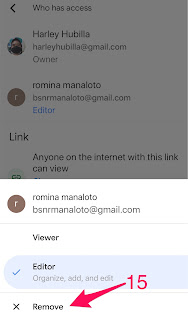
13. Tap the 'person' icon.


14. Tap 'Editor'.

15. Tap 'Remove' to remove the access.


16. Tap 'Viewer' to change the access.


17. A message will appear at the bottom.


Edifier M1250 USB Speaker


In my kid’s online classes we prefer to use the laptop’s speaker for the audio output so myself can also listen to what the teacher is saying. There is an option to use two (2) headsets at the same time but the setup looks messy with all the headset cable dangling. We decided to just add a USB speaker.

We found this item in Shopee, an Edifier M1250 Speaker (750.00 pesos)


It is powered via USB and the audio signal runs through the audio jack.


On the speaker itself, there is  an option to connect a headset. 


It is very simple to setup. Just connect the audio jack to the audio port and connect the USB cable to the USB port and power on the speaker. Adjust the volume to your preference.


Finally, here is the audio output, listen.


Google Drive App | How to’s


This post is a continuation of yesterday’s post, Google Drive | Free Cloud Storage.

This post is intended for users who have never used a free cloud storage before, specifically Google Drive.

How to Install Google Drive App

1. Go to App Store (IOS) or Play Store (Android), search and install Google Drive.


2. When installation is done, the Drive icon will appear in your home screen. Tap the icon to open the app.


You will have 15GB of FREE space. There are options located at the bottom.


The menu is located at the left side.


How to Create a New Folder

3. Click the plus (+) sign.


4. Type in the folder name.
5. Tap ‘Create’. A message will appear at the bottom ‘Folder Created’.


The new folder will appear under ‘Files’.


How to Upload Photos, Videos & other Files

6. Click the plus (+) sign.
7. For uploading photos and videos, tap ‘Photos & Videos’. For uploading other files, tap ‘Browse’. In the example we will upload a photo.


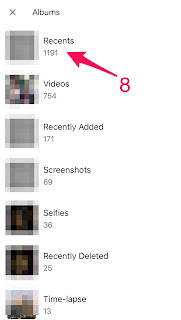
8. Select the album to browse the photo or video you want to upload.

9. Select the photos you want to upload.
10. Tap ‘Upload’.


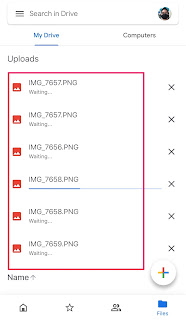
The files will begin to upload one by one. The speed of the upload will depend on the speed of your internet connection.


The uploaded files will appear under ‘Files’. You can also upload files to a specific folder by going first inside that folder and upload the files.